
Assassins Creed Black Flag Resynced best pc settings
The optimal configuration is a blend of High shadows, Medium water quality, and Standard ray tracing that sustains 60 frames per second. Adjusting these key scalability toggles recovers up to 40 percent performance over default Ultra presets without degrading core Caribbean environments.
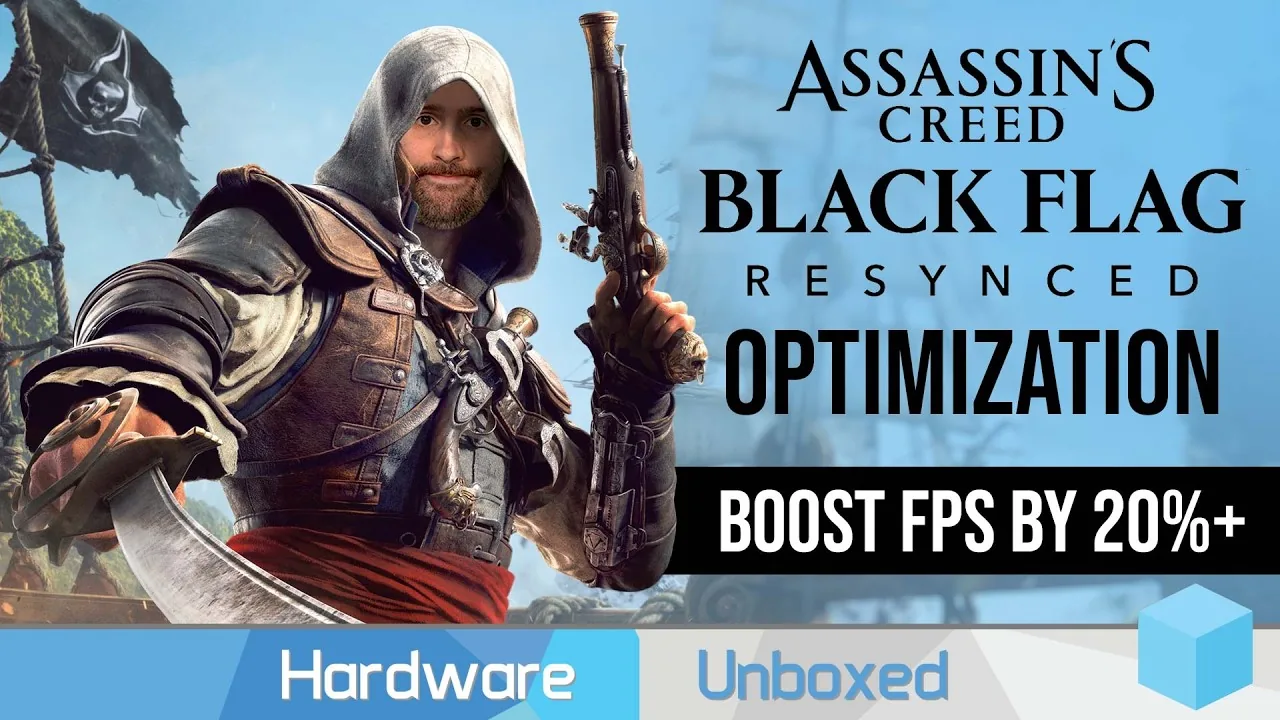
The optimal configuration is a blend of High shadows, Medium water quality, and Standard ray tracing that sustains 60 frames per second. Adjusting these key scalability toggles recovers up to 40 percent performance over default Ultra presets without degrading core Caribbean environments.
Which Display and Upscaler Settings Fix Engine Blur?
Resolution scaling is the primary factor affecting image sharpness in the Anvil Engine. In the launch release of the game, selecting the Balanced or Performance modes on NVIDIA DLSS, AMD FSR, or Intel XeSS automatically reduces the internal output resolution scale below 100 percent. The game scales down to 80 percent on Balanced and 70 percent on Performance before upscaling back to your native monitor target, producing a soft and blurry image during exploration.
To correct this scaling behavior, navigate to Display settings and switch your upscaler quality setting to Custom. Leave the Resolution Scale slider locked at 100 percent. Next, configure the Maximum Dynamic Resolution slider to match standard internal rendering fractions:
- Set the slider to 44 percent to target Quality mode.
- Set the slider to 34 percent to target Balanced mode.
- Set the slider to 25 percent to target Performance mode.
NVIDIA GeForce users should also verify model behavior through external driver controls. The game defaults to an older DLSS 3 CNN model preset on Quality modes. Opening the NVIDIA app, selecting the game profile, and applying an override to DLSS 4.5 Preset L or Preset M restores temporal clarity across dense foliage. Keep Display Mode on Borderless to prevent aspect ratio bugs on 16:10 monitors, and leave in-game VSync disabled while handling synchronization through GPU control panels to preserve stable frame pacing.
Optimal Graphics Settings Configuration
Optimized presets are tailored configurations that allocate hardware resources to visible geometric detail while reducing invisible background overhead. The table below outlines settings tailored for mainstream cards with 8 GB to 10 GB of VRAM alongside configurations for higher-tier GPUs.
| Graphic Setting | Mainstream Profile (8GB–10GB VRAM) | High-End Profile (12GB+ VRAM) | PS5 Console Equivalent |
|---|---|---|---|
| Ray Tracing Mode | Standard | Extended | Standard (Performance) / Extended (Fidelity) |
| Ray Tracing Quality | Medium | High | Medium |
| BVH Quality | High | High | High |
| Character Quality | Medium | High | Medium |
| Hair Strands | Player Only | All Characters Medium | Off (Performance) / Player Only (Fidelity) |
| Water Quality | Medium | High | Medium (Performance) / High (Fidelity) |
| Shadow Quality | High | High | Medium (Performance) / High (Fidelity) |
| Light Source Quality | Medium | High | Medium (Performance) / High (Fidelity) |
| Texture Resolution Quality | Medium | Very High | High (Performance) / Very High (Fidelity) |
| Geometry Quality | High | Very High | High |
| Loading Distance | Medium | Very High | Low (Performance) / Very High (Fidelity) |
| Micropolygon | Medium | High | Medium |
| Screen Space Effects | Low | High | Medium |
| Cloud Quality | Low | Medium | Medium |
| Fog Quality | Low | Medium | Medium |
| Terrain Quality | High | Ultra High | Medium (Performance) / High (Fidelity) |
| Scatter Density | Ultra High | Ultra High | High |
| Deformation | High | High | High |
Testing from Digital Foundry's PC analysis demonstrates that applying the mainstream optimized profile on an RTX 3070 yields a 38 percent framerate uplift compared to the Ultra High default preset at 1440p.
How Do Individual Graphics Options Impact Framerate?
Shadow quality is the most demanding individual visual setting in the game. Ultra High and Very High presets engage soft shadow penumbras that calculate variable dispersion based on distance from occluders. Setting Shadow Quality to High retains sharp, clean shadow maps on ship decks while delivering an immediate 14 to 15 percent performance increase over Ultra High. Dropping to High also mitigates frame drops during naval boarding actions when managing jackdaw upgrades and colliding against enemy hulls.
Ray Tracing Mode provides three distinct states: Off, Standard, and Extended. Standard replaces precomputed probe grids with ray-traced global illumination, bouncing natural indirect light into coves and tavern interiors. Extended adds ray-traced specular reflections across ocean surfaces and rain puddles. While Extended is visually superior across the water, it incurs a 23 percent framerate decrease relative to running with ray tracing disabled. Hardware Unboxed testing showed that Standard mode claws back 8 percent of that performance loss, while disabling ray tracing entirely gains 16 percent on mid-range hardware.
Water Quality directly controls surface wave tessellation and dynamic foam generation. Dropping this option from Very High to Medium provides a 4 to 5 percent boost without stripping out ocean swells when combating legendary ships. Hair Strands renders individual geometric splines; switching this setting from All Characters to Player Only preserves detailed hair simulation on Edward Kenway during cutscenes while eliminating up to an 11 percent CPU performance penalty in crowded ports like Havana.
Texture Resolution Quality governs VRAM allocation rather than raw compute cycles. On 8 GB cards, keeping textures at Medium prevents allocation overflow and stuttering, whereas cards with 12 GB or 16 GB of VRAM can maintain Very High without dropping frames. Check the official system requirements to confirm your GPU memory capacity before raising texture levels.
Which Hardware Profile Matches Your Target Resolution?
Hardware profiling is a method of matching internal rendering resolution to available video memory. According to details on the official Steam store page, Ubisoft built the remake around modern Anvil engine systems:
"Sail the Caribbean as Edward Kenway during the Golden Age of Piracy in this faithfully enhanced remake featuring stunning visuals, upgraded gameplay, and new content." — the official Steam store page description
The decision table below provides three distinct performance paths based on your system hardware, target display resolution, and acceptable framerate trade-offs.
| Profile Option | Target Hardware Setup | Framerate and Quality Result |
|---|---|---|
| Competitive Mainstream (1080p / 1440p) | RTX 3060, RTX 4060, RX 6600 XT, RX 5500 XT | Delivers 60 to 75 FPS using Standard Ray Tracing, Medium textures, and Balanced upscaling with minimal VRAM pressure. |
| Balanced Enthusiast (1440p / 4K) | RTX 4070, RTX 5070, RX 6800 XT, RX 7900 XT | Sustains 75 to 100 FPS with Extended Ray Tracing, High shadows, and Quality DLSS or FSR during open ocean sailing. |
| Pure Native Fidelity (4K Extreme) | RTX 4090, RTX 5080, RX 7900 XTX | Yields 60 to 80 FPS running native 4K with Extended RT enabled, requiring 16 GB of video memory and custom input controls. |
Low and Medium volumetric clouds yield an additional 5 to 6 percent framerate margin without noticeable visual losses during maritime storms. Combining these volumetric adjustments with custom upscaler limits keeps framerates stable across both land stealth missions and high-seas naval encounters.
Next step
Controls Guide
Configure your PC keybinds and controller layouts for on-foot exploration, melee combat, and Jackdaw naval travel.
Related Guides
Assassins Creed Black Flag Resynced Ending Explained; Assassins Creed Black Flag Resynced HDR Setting Guide
Ending Explained
Examine every narrative resolution in the remake, from the Observatory confrontation to the true ending clash against Robert Maynard.
HDR Settings
Configure in-game luminance and exposure sliders to correct raised black levels and prevent highlight clipping across consoles and PC displays.