
Assassins Creed Black Flag Resynced Save File Location
Assassin's Creed Black Flag Resynced save files are located inside your Ubisoft Game Launcher directory under the savegames folder, using folder ID 66088 for Steam and 65043 for Ubisoft Connect. Backing up these folders protects your progress and Jackdaw upgrades.
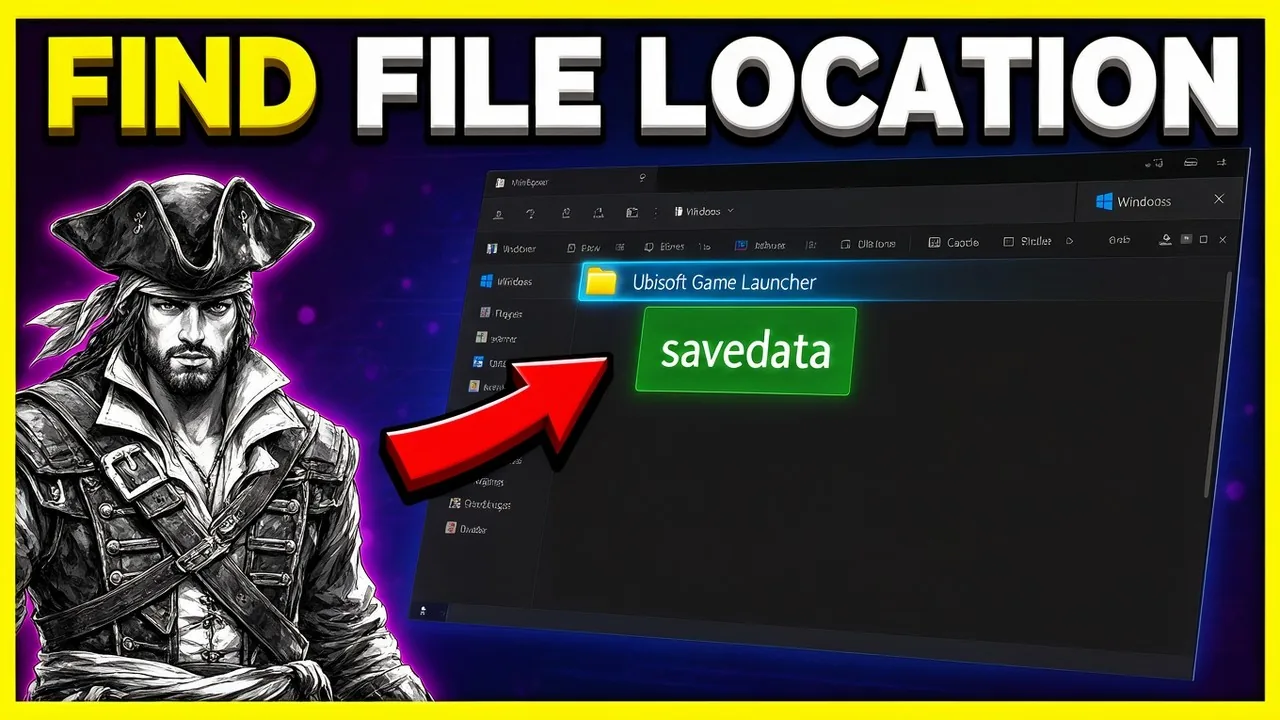
Assassin's Creed Black Flag Resynced save files are located inside your Ubisoft Game Launcher directory under the savegames folder, using folder ID 66088 for Steam and 65043 for Ubisoft Connect. Backing up these folders protects your progress and Jackdaw upgrades.
Where Is the Save File Location on PC?
Save files are local data archives stored on your Windows system drive to record your campaign progress, ship improvements, and inventory. Regardless of whether you launch the game through Steam, Epic Games, or the Ubisoft Connect client, all PC editions store campaign data through the Ubisoft Game Launcher ecosystem.
Within the primary savegames directory, your files reside inside a folder named after your Ubisoft Account ID, which appears as an alphanumeric string, followed by a numerical game ID folder.
| Storefront Client | File Path | Game Folder ID |
|---|---|---|
| Steam | C:\Program Files (x86)\Ubisoft\Ubisoft Game Launcher\savegames<UbisoftConnectID>\66088 | 66088 |
| Ubisoft Connect PC | C:\Program Files (x86)\Ubisoft\Ubisoft Game Launcher\savegames<UbisoftConnectID>\65043 | 65043 |
| Epic Games Launcher | C:\Program Files (x86)\Ubisoft\Ubisoft Game Launcher\savegames<UbisoftConnectID>\65043 | 65043 |
According to technical documentation on PCGamingWiki, Ubisoft Connect may also reference local cache data in the AppData path at %LOCALAPPDATA%\Ubisoft\Assassin's Creed Black Flag Resynced\save. When you play through Steam Proton, the compatibility path mirrors the Windows directory structure inside steamapps/compatdata/3751950/pfx/, where 3751950 represents the Steam application ID registered on the Steam store page.
Which Backup Method Fits Your Setup?
Manual backups give you control over file versions before installing community modifications or switching between devices. Choosing the correct approach depends on how you balance convenience against offline file safety.
| Backup Option | Best Scenario | Requirements and Trade-offs |
|---|---|---|
| Manual Folder Copy | Modding or changing operating systems | Requires copying the numerical ID folder to external storage; fully protects against cloud overwrite conflicts. |
| Ubisoft Connect Cloud | Routine play across multiple desktop PCs | Requires an active internet connection at game exit; sync failures can overwrite local progress if disconnected prematurely. |
| Steam Cloud Sync | Managing cross-device display profiles | Operates as a secondary metadata sync for configurations; does not store main campaign story checkpoints independently. |
When preparing to adjust your steam deck settings or transfer progress between gaming rigs, copying the entire 66088 or 65043 folder prevents accidental data loss during automatic synchronization.
How Do You Manage In-Game Save Slots?
Save slots are dedicated storage entries configured directly through the in-game menus to track multiple playthroughs and mission replays. The game separates your milestones across several dedicated registers.
In Assassin's Creed Black Flag Resynced your progress is saved manually and automatically. — the official Ubisoft support page
Data published on the official Ubisoft support page lists 20 manual save slots alongside 5 autosave slots. Controlling these files uses specific in-game menus:
- Start a new game by opening the main menu, selecting Memories, choosing Black Flag Resynced, and clicking New Game.
- Load an existing save by selecting Memories, opening Load, highlighting your desired slot, and holding the Load command.
- Delete an unwanted file by selecting Load from the main menu, or by pausing during gameplay, choosing Save, highlighting the target slot, and holding Delete.
Where Are the Configuration Files Stored?
Configuration files are plain-text documents containing user settings, display preferences, and hardware profiles. In Assassin's Creed Black Flag Resynced, graphic parameters and window modes sit apart from your campaign save files:
%USERPROFILE%\Documents\Assassin's Creed Black Flag Resynced\ACBlackFlag.ini
Opening ACBlackFlag.ini in a text editor allows you to inspect resolution values, graphics presets, and rendering toggles before booting the executable. Keeping a backup copy of this file helps restore default parameters when testing custom options for best pc settings or verifying hardware capability against the official system requirements. Prior to editing display parameters, verify that the game is closed so new values write cleanly to your profile.
Next step
Steam Deck Settings
Configure handheld visual presets, resolution scaling, and frame limiters to achieve stable thirty frames per second performance on Steam Deck hardware.
Related Guides
Assassins Creed Black Flag Resynced unsupported video driver; Assassins Creed Black Flag Resynced Walkthrough Guide; Assassins Creed Black Flag Resynced advanced parkour
Video Driver Fix
Resolve the unsupported video driver alert and DirectX 12 startup crashes when launching the pirate remake on your PC.
Walkthrough Guide
Clear main memory sequences, manage naval fleet boarding options, recruit crew officers, and secure the ancient Observatory with verified strategies.
Advanced Parkour Settings
Turn on advanced parkour in Assassin's Creed Black Flag Resynced to execute manual jumps, directional ejects, and roll landing techniques.